Short version
In Settings → Slate, choose a spot, press Save slate and check it with Preview. Then pick how long it may hold: Until return to live, or 10, 30 or 60 seconds.
What the slate does
The slate is one video, usually your logo or a "We'll be right back" card. It's used in two ways:
- To fill gaps. If a break's spots don't fill its whole length, the slate loops for the seconds left over.
- In an emergency. Play slate in the control room or the dock puts it on air straight away, with sound.
Without a slate, some break lengths can't run at all (see below), so it's worth choosing one.
Choose the slate
You need to be the workspace admin.
- Open Settings → Slate.
- Under Slate spot, choose a spot from your library. Any spot that isn't Unplayable works, from any folder.
- Press Save slate.
- Press Preview to watch it on the page. The preview plays muted and on a loop; Stop preview ends it.
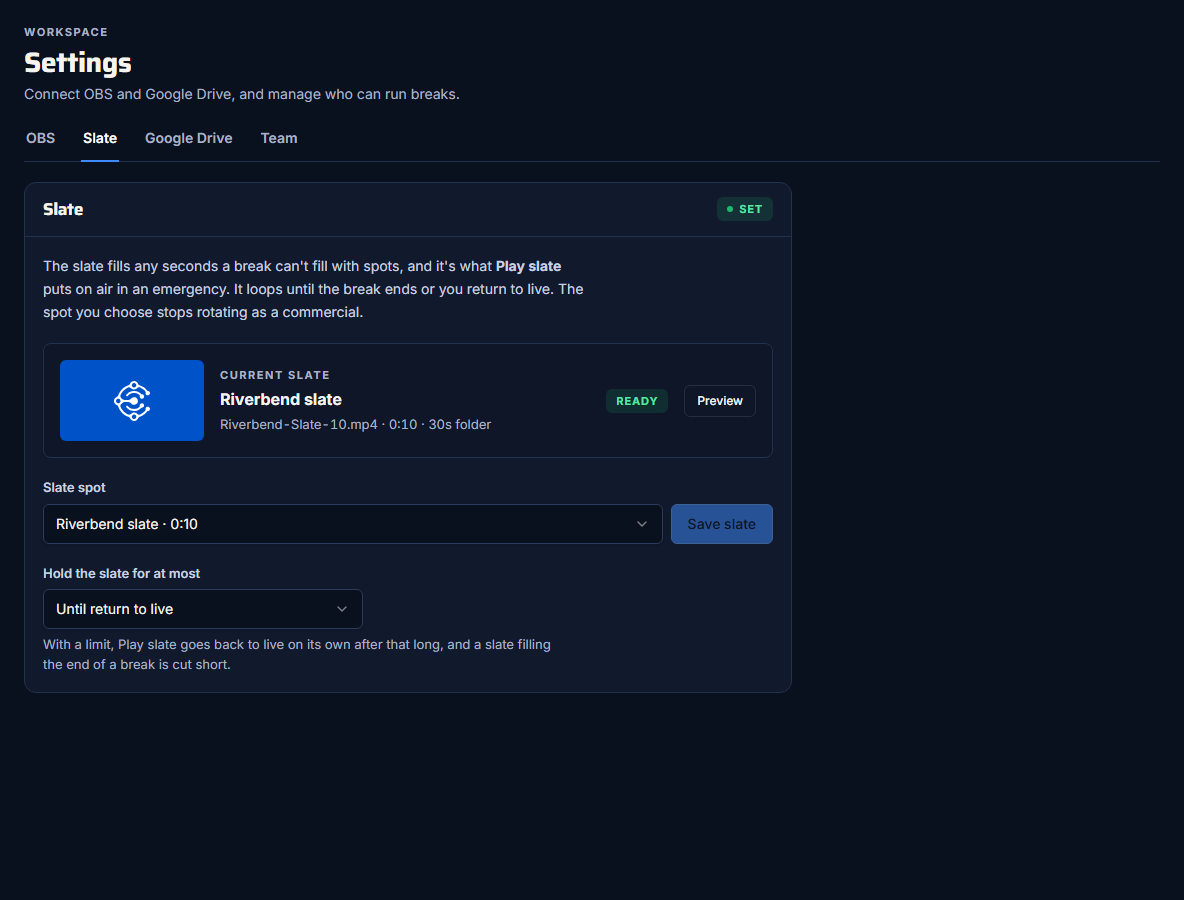
The spot you choose stops rotating as a commercial. Clear slate removes it, and the spot goes back into rotation.
Make a slate that loops well
The slate can loop several times, so a short, silent or quiet video with no countdown or date in it works best.
How long the slate can hold
Hold the slate for at most sets a limit. It saves as soon as you pick.
| Option | What happens |
|---|---|
| Until return to live (default) | The slate stays on air until someone presses Return to live, or the break ends. |
| 10 seconds, 30 seconds, 60 seconds | Play slate goes back to live on its own after that long. A slate filling the end of a break is cut short at that length, and the break ends early. |
A limit is a safety net for an operator who steps away during an emergency.
With no slate
- Breaks that can't be filled exactly with spots are Unavailable.
- Play slate stays off. The dock shows "Play slate (no slate set)".
- The overview shows Choose a slate under Show readiness.