Short version
Type a weight for each spot. Weights always rescale to add up to 100%, keeping their proportions. Actual share then shows how each spot is really doing against its weight.
Set weights
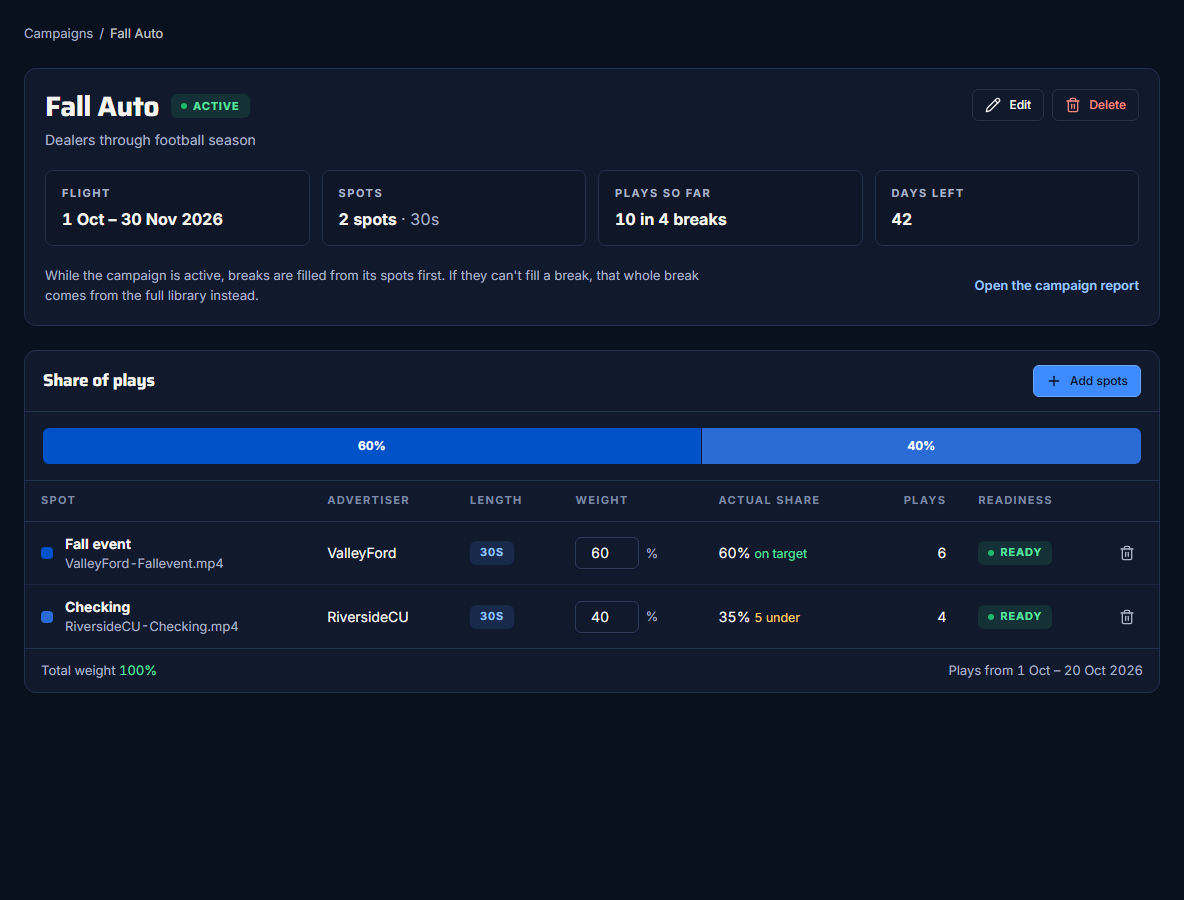
On the campaign's page, each spot in Share of plays has a Weight.
- Click a spot's weight and type a whole number from 1 to 100.
- Click away. The weights are saved and rescaled to add up to 100%, keeping their proportions.
The number you typed is rescaled too. With two spots at 60% and 40%, typing 80 for the first gives 80 : 40, which rescales to about 67% and 33%. To get an exact split, think in proportions: equal numbers mean equal shares.
The bar above the table shows each spot's share. The app warns when one spot will take most of the plays.
Equal weights are fine
If you just want a sponsor's spots to rotate evenly, leave every weight the same.
How weights are used
When a break is filled from the campaign, the weights decide how likely each spot is to be picked. It's a likelihood, not a strict schedule, so actual shares settle towards the weights over many breaks. See How spots are picked.
Check how it's going
The tiles at the top:
- Flight: the campaign's dates.
- Spots: how many spots, and their lengths.
- Plays so far: "N in N breaks", over the flight up to today.
- Days left: days to the end date, "Starts in N days", "Ended" or "No end date".
In the table, for each spot:
- Actual share of the campaign's plays, then "on target" (within 1 point), or "N under" / "N over".
- Plays: how many times it has aired in this campaign.
For a sponsor-ready view with airtime and plays by week, press Open the campaign report. See Use the campaign report.