Short version
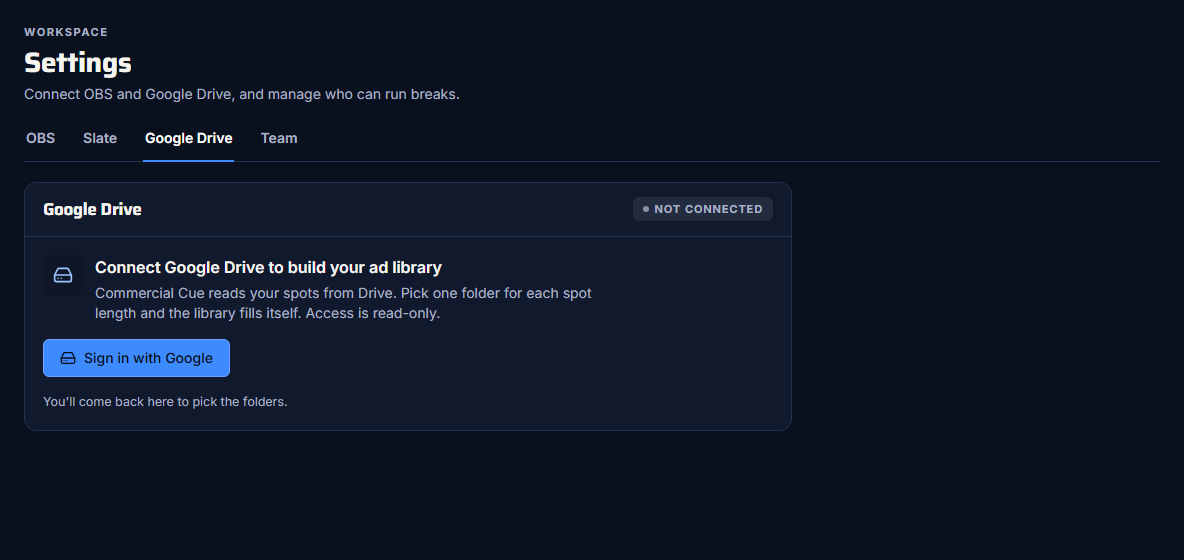
Open Settings → Google Drive and press Sign in with Google. Access is read-only. Then pick a folder for each break length.
Commercial Cue reads your spot videos straight from Google Drive. Nothing is uploaded, and it never changes your files.
Connect
You need to be the workspace admin.
- Open Settings and choose the Google Drive tab.
- Press Sign in with Google.
- Pick the Google account that holds your spots and allow access.
- You come back to Settings, ready to pick your folders.
When it's connected, the tab says "Read-only access as" and the account's email address.
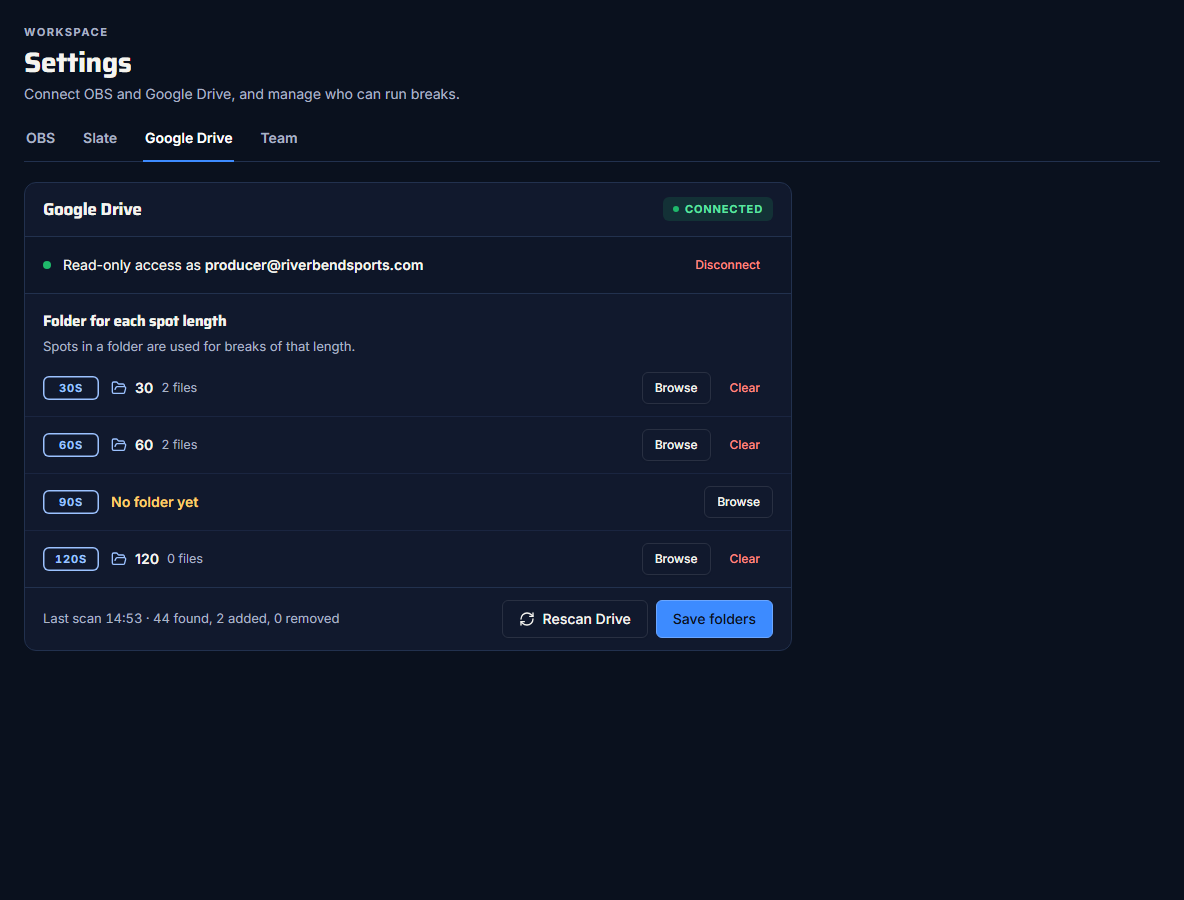
It can be a different account
The Drive account doesn't have to be the one you sign in with. Many teams keep their spots in a shared producer account and connect that.
What Commercial Cue can see
- Read-only access. It can list folders and read files. It can't upload, edit, move or delete anything in your Drive.
- My Drive only. The folder browser starts at My Drive. Shared Drives aren't supported, so keep your spot folders in My Drive.
- Only the folders you map. Spots come only from the folders you choose for each length, never the rest of your Drive.
Disconnect
Press Disconnect on the Google Drive tab. This:
- removes the Drive connection
- clears your folder mappings
Spots already in your ad library stay there, and your proof of play is unchanged. To use Drive again, connect and map your folders again.
Next step
Map your break folders and rescan