Short version
With OBS connected, press Create scenes and source in the setup assistant. Then move your cameras and graphics into the LIVE scene, and leave AD_PLAYBACK to Commercial Cue.
What breaks need in OBS
| Name | What it is |
|---|---|
| LIVE | The scene with your show. Commercial Cue cuts back to it after each break. |
| AD_PLAYBACK | The scene the spots play in. |
| CommercialCueSource | A media source in AD_PLAYBACK that plays each spot. |
During a break, Commercial Cue switches OBS's program scene from LIVE to AD_PLAYBACK and back.
Create them
You need OBS connected first.
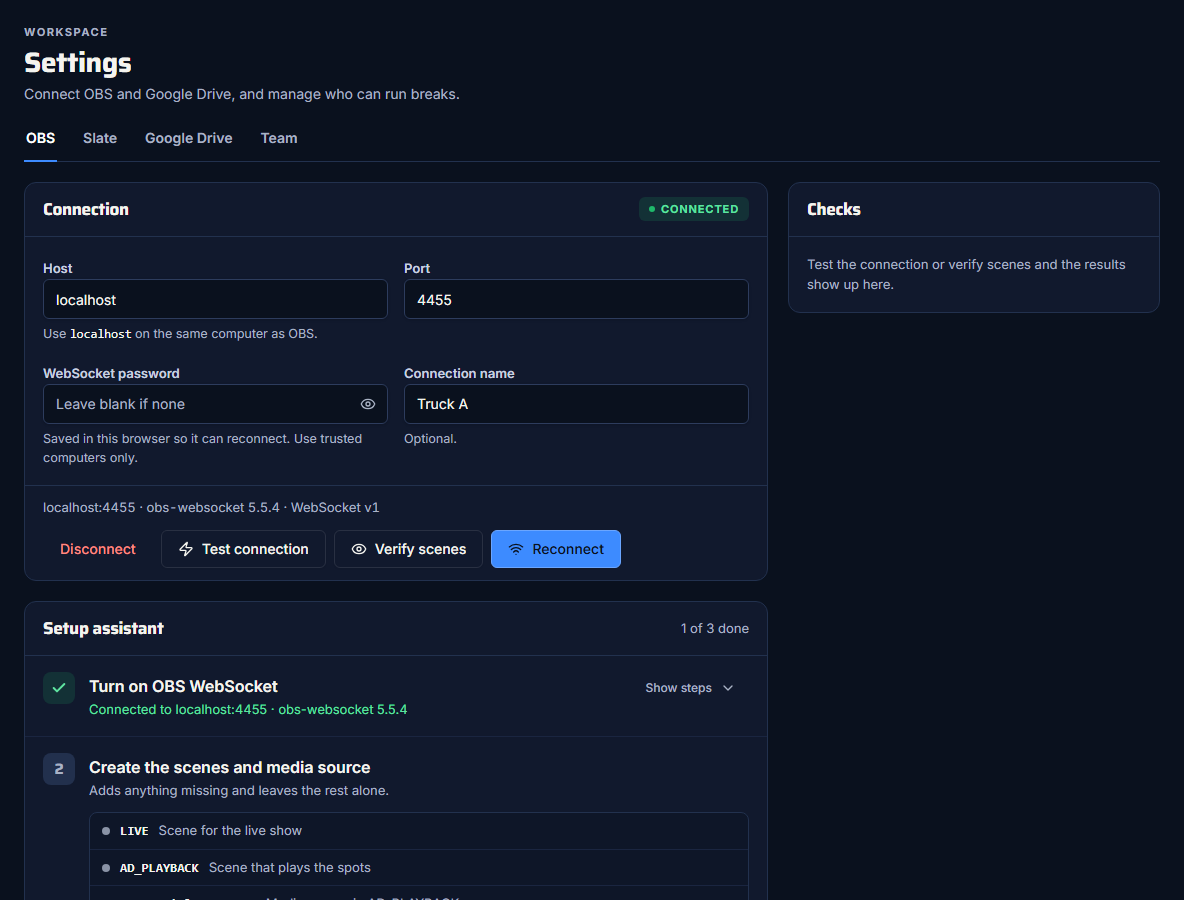
- Open Settings → OBS and find the Setup assistant. It counts your progress, for example "1 of 3 done".
- Under Create the scenes and media source, press Create scenes and source.
It adds whichever of LIVE, AD_PLAYBACK and CommercialCueSource are missing, and leaves everything else in OBS alone. It's safe to press again.
Check them
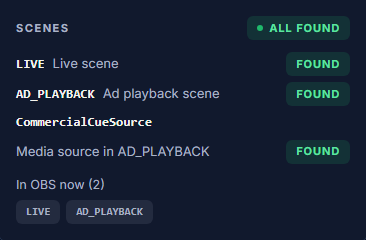
Press Verify scenes at any time while connected. The Checks panel shows whether LIVE, AD_PLAYBACK and CommercialCueSource (inside AD_PLAYBACK) are all found, and which scenes are in OBS now.
Put your show in LIVE
- Your cameras, graphics and overlays belong in the LIVE scene.
- If your show already lives in a scene with another name, move its sources into LIVE, or add that scene to LIVE as a nested scene source.
- Don't put other sources on top of CommercialCueSource in AD_PLAYBACK, or they'll cover the spots.
Don't rename the scenes
Commercial Cue finds the scenes and source by name. If you rename LIVE, AD_PLAYBACK or CommercialCueSource, breaks can't run until you put the names back or press Create scenes and source again.
Next step
Add the Commercial Cue dock to OBS, the third step of the setup assistant.