Short version
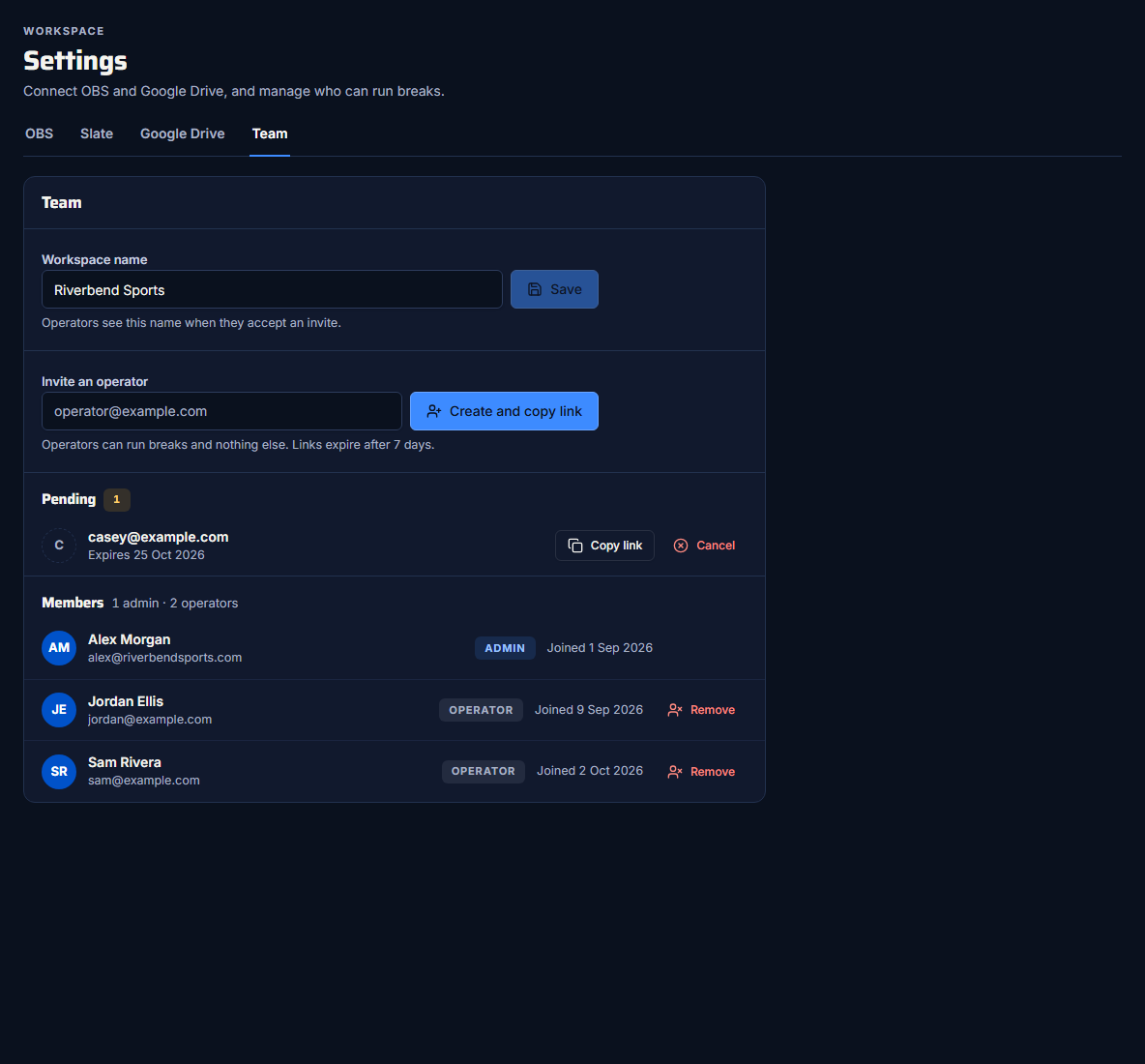
In Settings → Team, press Remove next to an operator to take away their access. Change the workspace's name at the top and press Save.
Members
Settings → Team lists everyone in the workspace under Members, for example "1 admin · 2 operators". Each person shows their name, email, role and the date they joined.
Remove an operator
Press Remove next to the operator. Remove appears only for operators: the admin can't be removed.
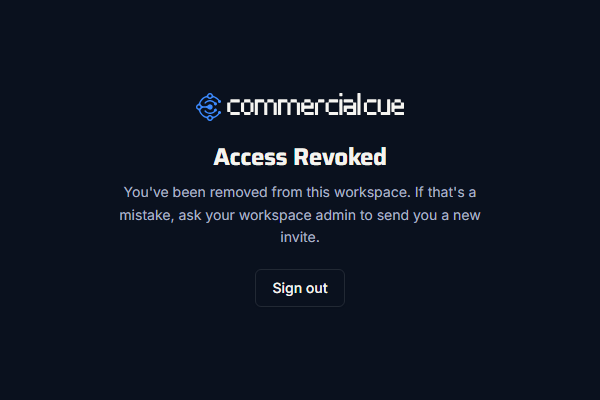
Their access ends straight away. The next time they open Commercial Cue, they see Access Revoked, with a Sign out button.
Breaks they ran stay in proof of play, under their name. To let them back in, send them a new invite. See Invite an operator.
Rename your workspace
- In Settings → Team, edit Workspace name.
- Press Save.
Operators see this name when they accept an invite and in their top bar, and sponsors see it on shared reports, so use your channel's or organisation's name.