Short version
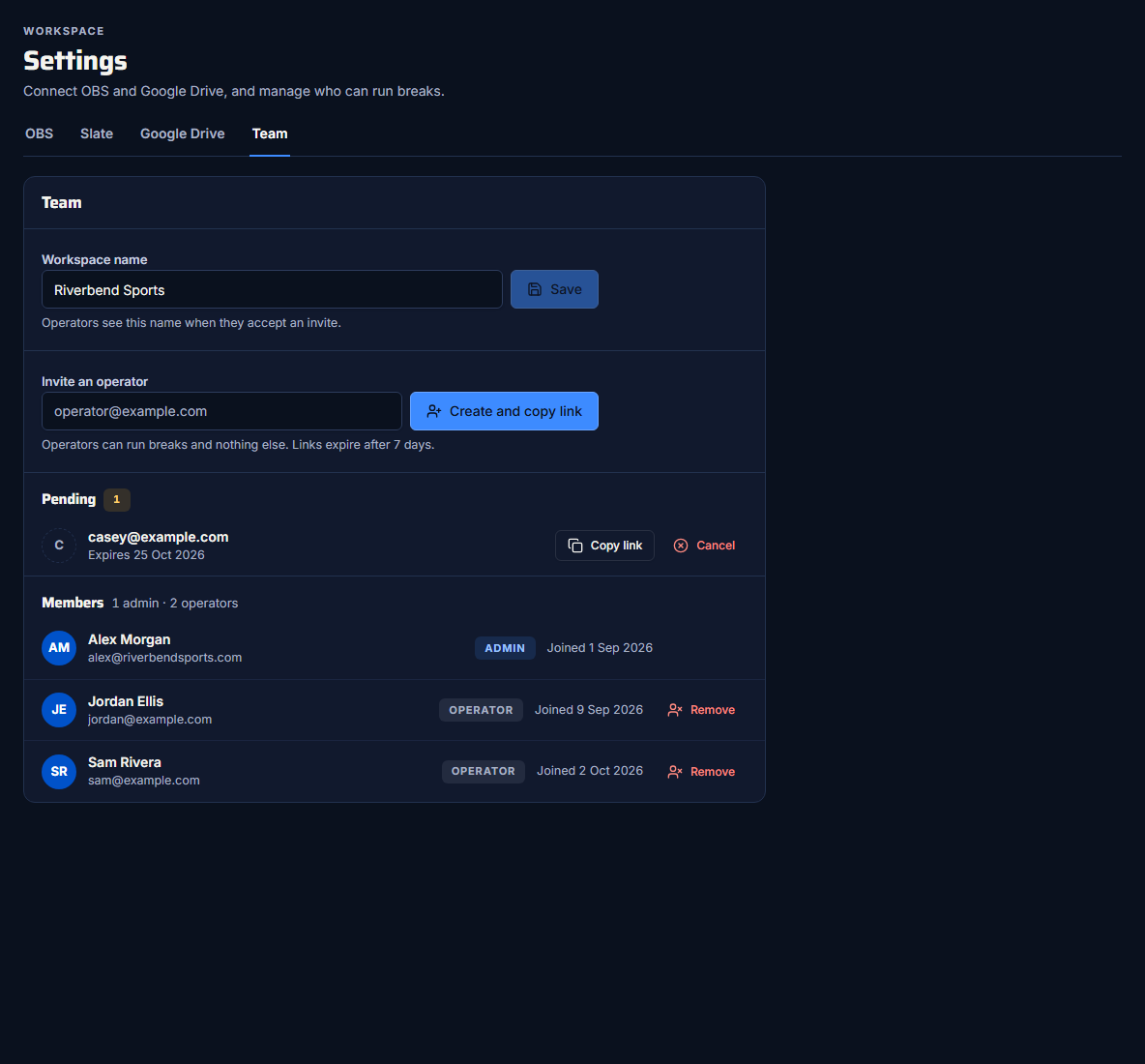
In Settings → Team, enter the operator's email and press Create and copy link. Send them the link yourself. They open it and sign in with Google using that email.
Operators run breaks from the control room and the OBS dock, and nothing else. See What admins and operators can do.
Create an invite
You need to be the workspace admin.
- Open Settings → Team.
- Under Invite an operator, enter their email address.
- Press Create and copy link.
The link is copied to your clipboard, and the app says "Send it to {email} yourself. It expires in 7 days."
Send it yourself
Commercial Cue doesn't email anyone. Paste the link into a text, email or chat to the person you're inviting.
What the operator does
- Open the invite link. The sign-in page says which workspace they've been invited to, and which email to sign in with.
- Press Continue with Google.
- Sign in with that email address.
They land in the control room, ready to run breaks. They see your workspace's name, so set it first in Settings → Team.
Use the invited email address
If the operator signs in with a different Google account, they don't join. The app says "You haven't joined the workspace" and which account the invite is for, with a Sign out button that takes them back to the invite to try again. Make the invite for the account they'll use.
Someone who already made an empty workspace of their own can still join. If their own workspace has spots or people in it, they're asked to use a different Google account.
Pending invites
Invites not yet used are listed under Pending, with their expiry date:
- Copy link copies the link again, to resend it.
- Cancel withdraws the invite, so the link stops working.
Links expire after 7 days. To invite someone whose link expired, create a new invite.
When they've joined
They appear under Members, as an Operator, with the date they joined. To remove someone, see Remove an operator and rename your workspace.