Short version
The ad library lists every spot read from your Drive folders. Search by title or file name, filter by length or readiness, and press Rescan Drive after changing files.
The ad library is for the workspace admin. Open Ad library in the sidebar.
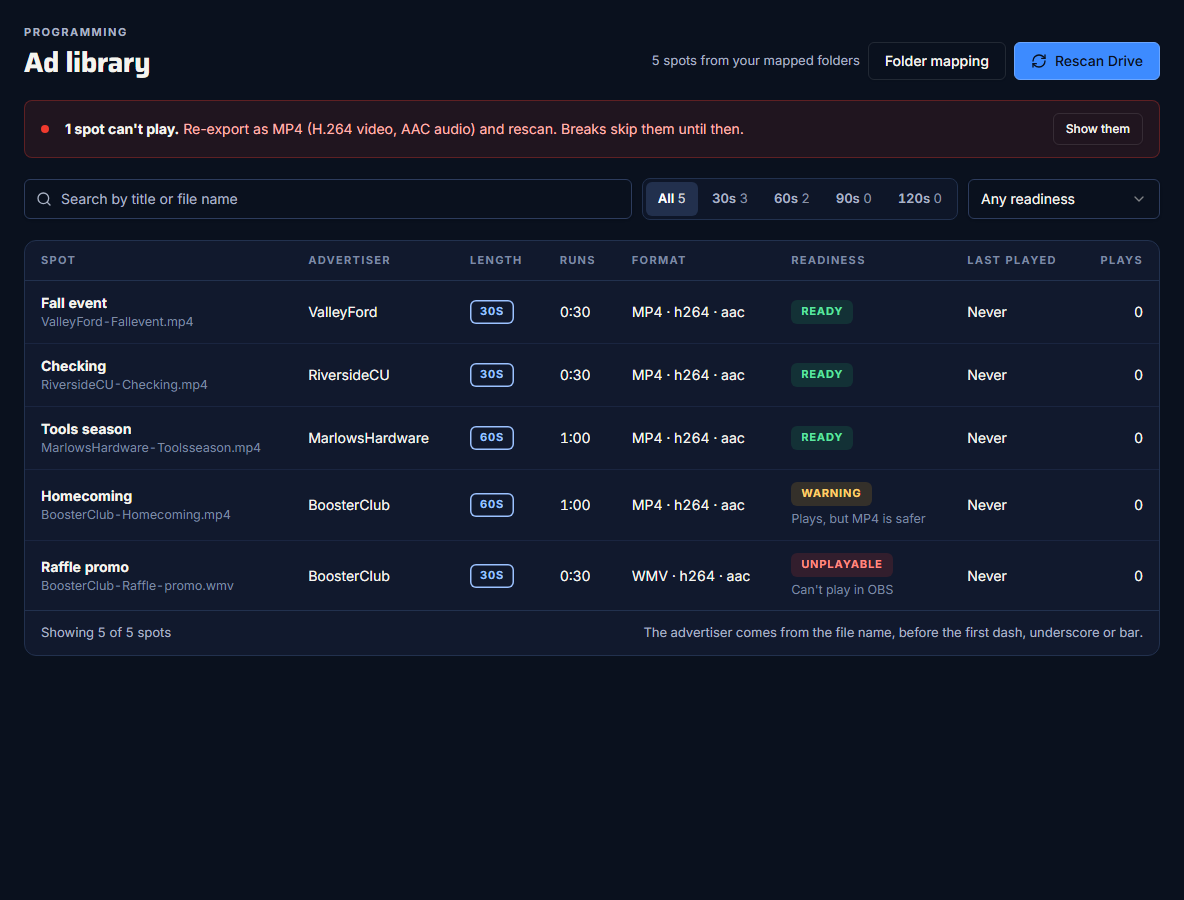
The header
- "Last scan {time} · N files from N folders"
- Folder mapping opens Settings → Google Drive, to change which folders are read.
- Rescan Drive reads your folders again. See Map your break folders and rescan.
If any spot is Unplayable, a banner says how many and how to fix them, with Show them to list them.
Find a spot
- Search ("Search by title or file name") looks in the title and the file name. It doesn't search the advertiser.
- Length: All, 30s, 60s, 90s or 120s, each with a count.
- Readiness: the Any readiness menu narrows the list to one readiness.
The columns
| Column | What it shows |
|---|---|
| Spot | The title, with the file name below. |
| Advertiser | From the file name: the text before the first dash, underscore or bar. |
| Length | The folder's length. |
| Runs | The spot's real duration, from Google Drive. |
| Format | The file type, for example MP4. Commercial Cue doesn't look inside the video, so it doesn't show codecs. |
| Readiness | Ready, Warning, Not recommended or Unplayable. See Prepare your spot files. |
| Last played | When it last went on air, or "Never". |
| Plays | How many times it has really aired. Spots skipped when a break ended early don't count. |
Titles and advertisers come from file names
To change a spot's title or advertiser, rename the file in Google Drive and rescan. There's nothing to edit in the library itself.
Related guides
Set upPrepare your spot filesExport MP4s, match each spot to its folder's length, and name files so the advertiser is clear.Set upMap your break folders and rescanOne Drive folder per spot length, and when to press Rescan Drive.ProgrammingCreate a campaignGive a sponsor's spots priority for set dates, and keep one campaign in use at a time.