Short version
In Break pods, press New pod, choose a target length, add spots, put them in order, and press Save running order. Operators can then play it from the control room or dock.
Use a pod when the order matters: a presenting sponsor first at halftime, or a set package you promised a sponsor.
Create a pod
- Open Break pods and press New pod.
- Give it a Pod name, for example "Halftime".
- Choose a Target length: 30, 60, 90 or 120 seconds.
- Optionally choose a Campaign. Leave it as Full library (no campaign) to use any spot.
- Press Create pod.
With a campaign linked, Add spots lists only that campaign's spots.
Add and order spots
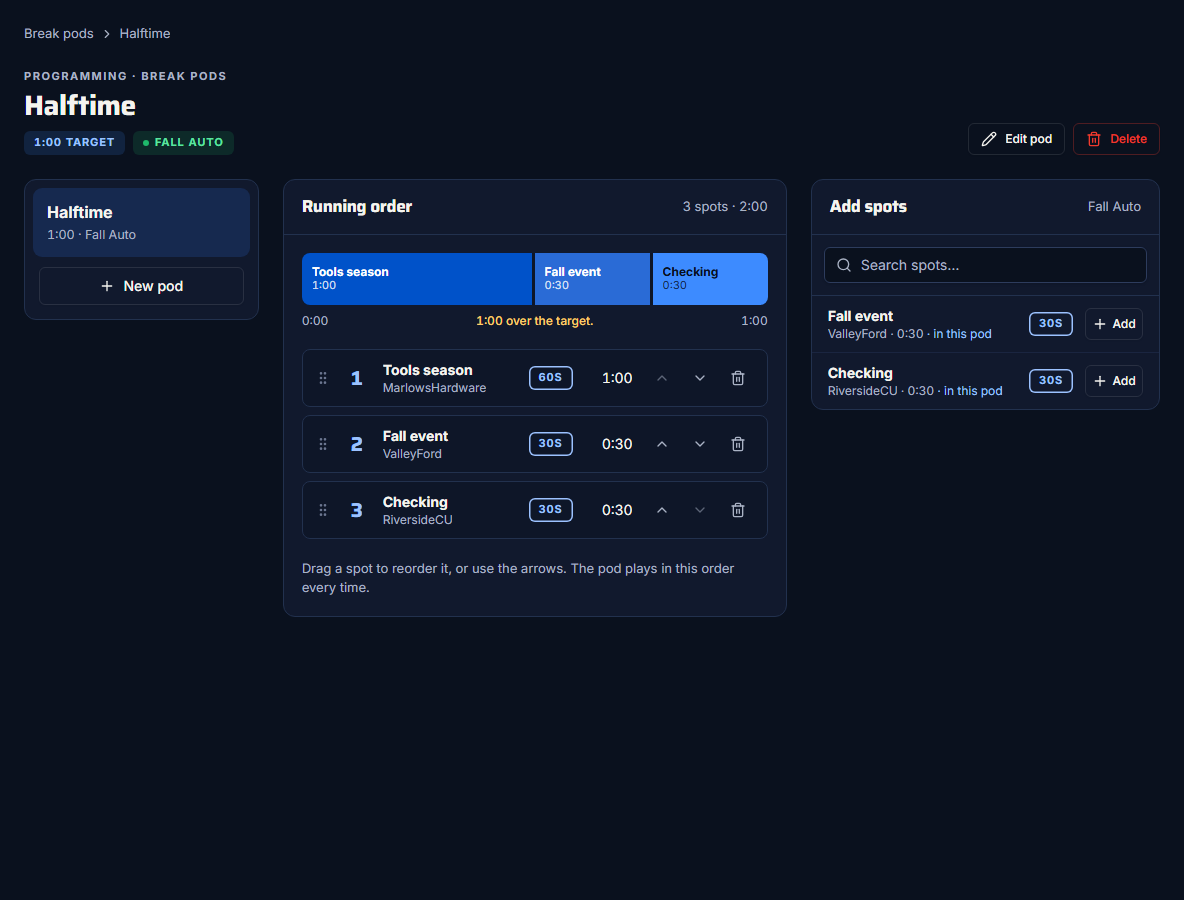
- In Add spots, search and press Add next to a spot. Spots already in the pod say "in this pod".
- Reorder by dragging a spot by its handle, or with the up and down arrows.
- Remove a spot with its bin icon.
- Press Save running order. It only appears when you have unsaved changes.
The same spot can be added more than once, and there's no limit on the number of spots.
Check the running time
The timeline and the line under it compare the pod with its target:
- "Exactly {time}. No slate needed."
- "{time} over the target."
- "{time} under the target. The rest is unfilled."
Add spots warns before a spot would take the pod over its target, but neither over nor under is blocked. When it's played, the pod runs its spots in order with no slate: a short pod makes a short break, and a long one runs over.
Spots that won't play
If a spot was removed from Drive, or can't play in OBS, the pod shows "Some spots won't play." and tags the spot Removed from Drive · skipped or Can't play · skipped. Those spots are skipped when the pod plays.
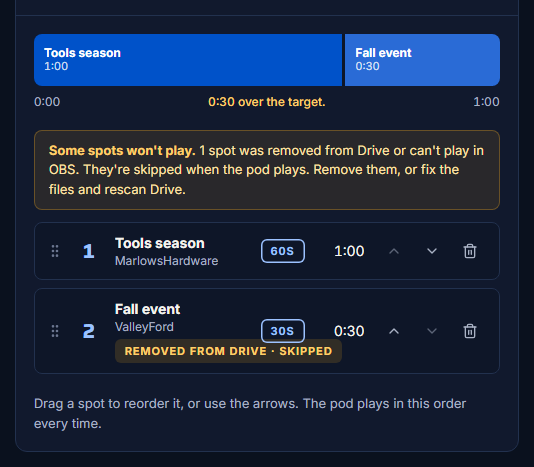
Remove them, or fix the files and rescan Drive.
Manage pods
- The list beside the pod shows your other pods, with New pod.
- Edit pod changes the name, target length or campaign.
- Delete asks "Delete this pod?".