Short version
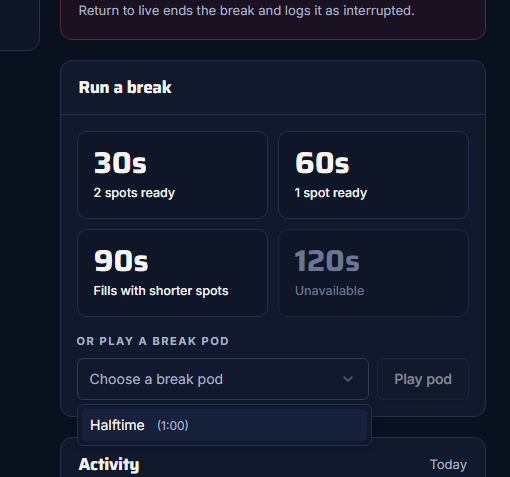
Under Or play a break pod, choose a pod and press Play pod. Its spots play in the order they were saved, with no slate added.
A break pod is a running order your admin built ahead of time, for example "Halftime" with your presenting sponsor first. Use one when the order matters.
Play a pod
- In the control room, under Or play a break pod, open Choose a break pod. Each pod shows its target length.
- Choose the pod.
- Press Play pod.
The break then runs like any other: the first spot loads while you're live, the cut happens once it's playing, and you go back to live after the last spot. You can still press Return to live now at any time.
In the dock, it's the pod picker under the break buttons, with the same Play pod button.
If there are no pods yet, the control room says "No break pods yet." with a link to Create a pod (for admins).
How a pod plays
- In its saved order, at its target length.
- No slate is added. If the pod is shorter than its target, the break is simply shorter. If it's longer, it runs over.
- Spots that can't play are skipped: spots removed from Drive, or marked Unplayable. If none are left, the pod won't start, and the app says "None of this pod's spots can play…".
- In the control room, Filled by says "Pod · {name}".
Check pods before the show
The pod page flags spots that will be skipped. Your admin can fix them before you need the pod. See Build a break pod.