Short version
Press Continue with Google. The first time you sign in without an invite, you get a new workspace and you're its admin. Rename it in Settings → Team.
Sign in
Commercial Cue has no passwords. The only way in is with your Google account.
- Go to commercialcue.com and choose Sign in.
- Press Continue with Google and pick your account.
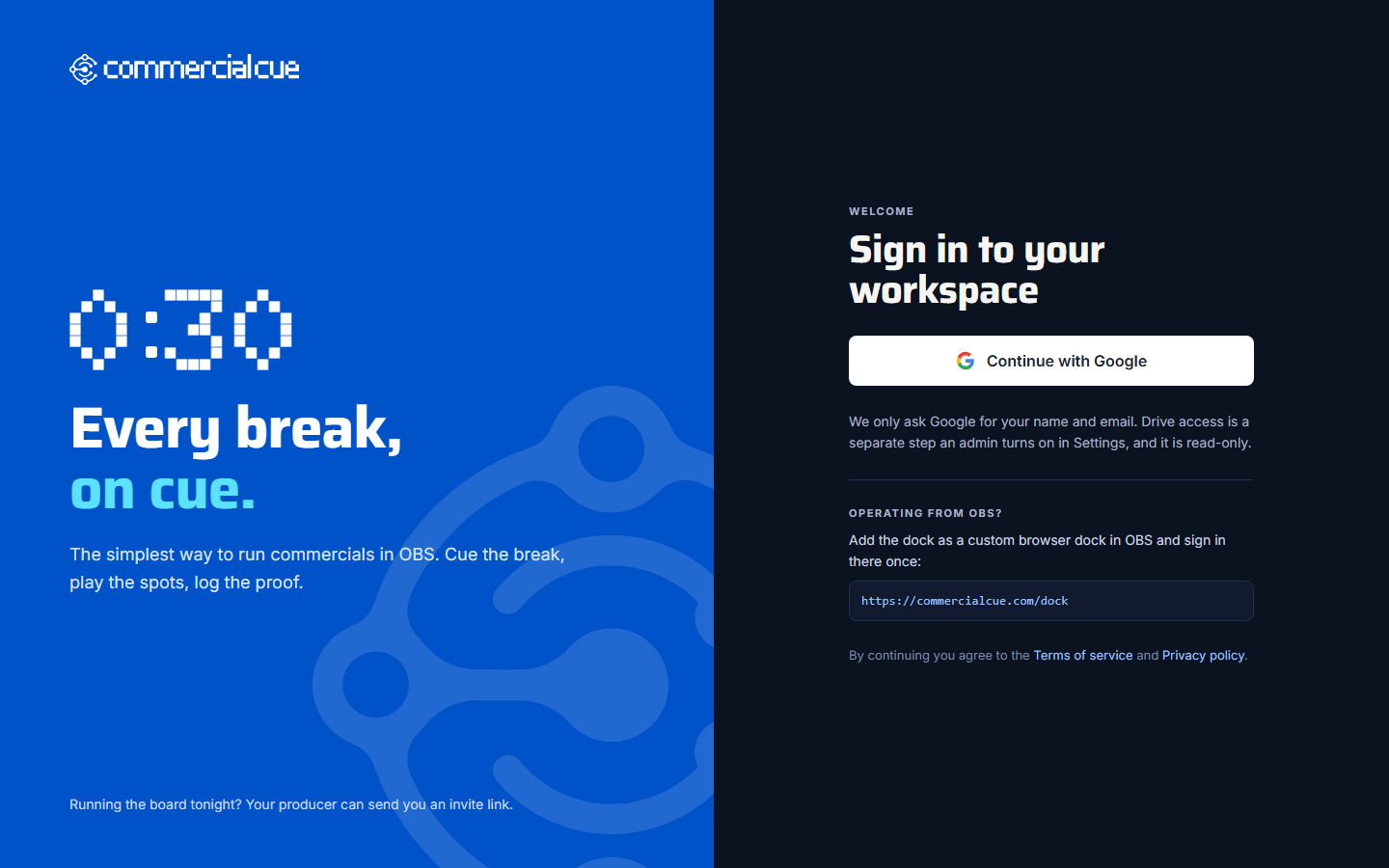
Signing in only shares your name and email with Commercial Cue. Reading your spots from Google Drive is a separate, read-only step you turn on later in Settings. See Connect Google Drive.
Your workspace
A workspace holds everything for your channel: your ad library, campaigns, break pods, proof of play, and the people who run breaks.
- The first time you sign in without an invite, Commercial Cue creates a workspace called "{your first name}'s Workspace".
- You become its admin.
To rename it, open Settings → Team, edit the workspace name and press Save. Operators see this name when they accept an invite, so use your channel or organisation's name.
The admin and operators
Each workspace has one admin: the person who created it.
| Admin | Operator | |
|---|---|---|
| Control room and OBS dock | Yes | Yes |
| Overview, ad library, campaigns, break pods | Yes | No |
| Proof of play and campaign reports | Yes | No |
| Settings and inviting people | Yes | No |
Everyone you invite joins as an operator. Operators run breaks and nothing else, so nobody can change your setup by accident during a busy show. Nobody can be promoted to admin.
Joining someone else's workspace
If a producer sent you an invite link, open that link first, then sign in with the same email address the invite was made for. Signing in with a different account gives you a new, empty workspace instead.
Sign out
Use the sign-out icon next to your name at the bottom of the sidebar. Operators have a Sign out button in the top bar.