Short version
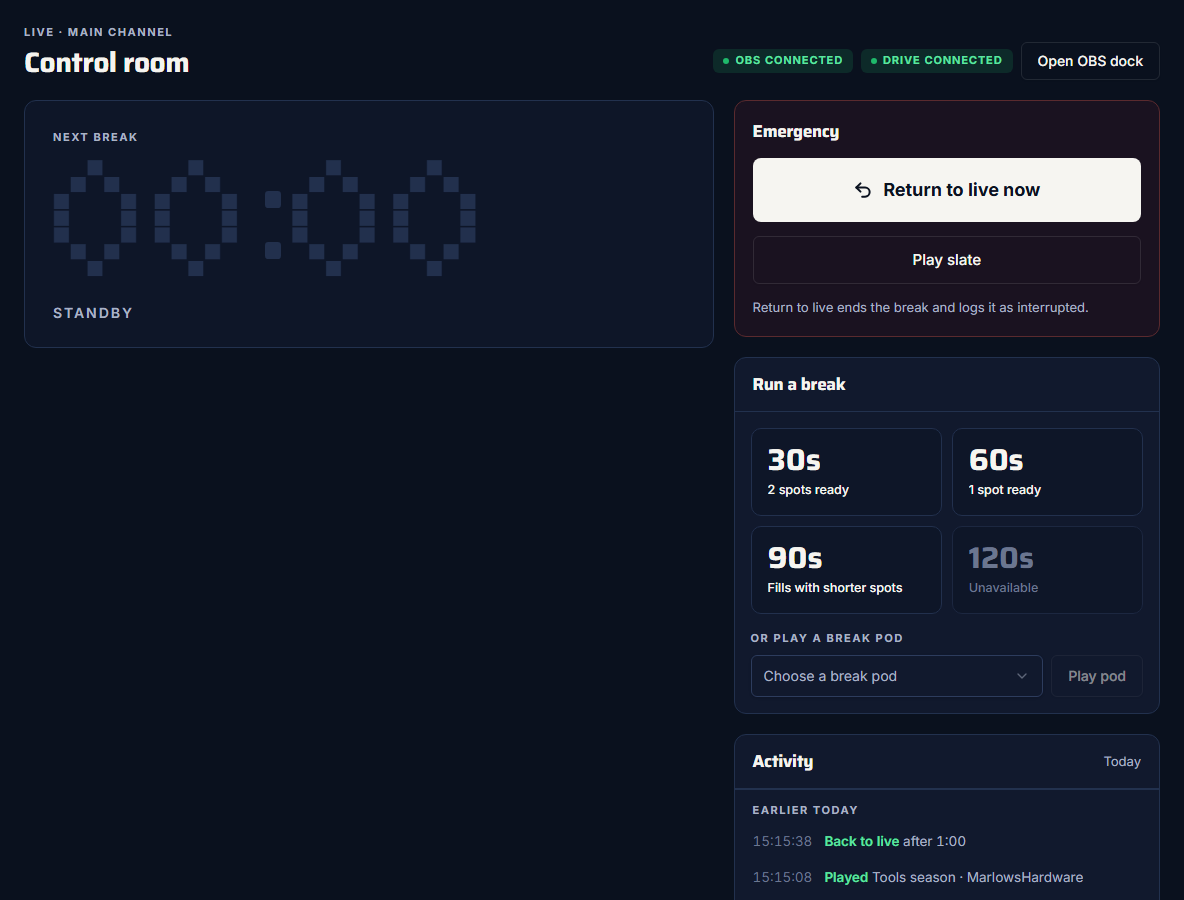
With OBS connected, open the Control room and press 30s, 60s, 90s or 120s. Commercial Cue loads the spots, cuts to them, counts down, and cuts back to your show when they're done.
Before you start
- OBS is connected. Every break button, Play pod, Return to live now and Play slate stays off until this browser is connected to OBS. If it isn't, the control room says "Connect OBS to run breaks." See Connect OBS.
- Your show is in the LIVE scene. See Create the scenes and media source.
- Your spots are in the library. Rescan Drive if you added any today. See Map your break folders and rescan.
The control room's header shows OBS connected and Drive connected when you're set.
Read the break buttons
Each length button says whether it can run:
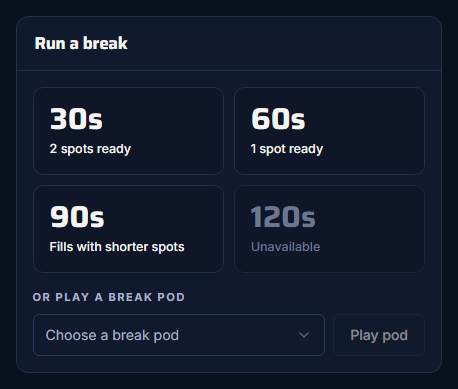
| Label | What it means |
|---|---|
| N spots ready | There are Ready spots of exactly this length (not counting the slate). |
| Fills with shorter spots | No spots of this length, but shorter spots (and the slate) can fill it. |
| Unavailable | This length can't be filled. The button is off. |
| Checking… | Still loading. |
How the spots are chosen is in How spots are picked.
Run the break
- Press a length, for example 60s.
- The first spot loads in OBS, muted, while your show stays on air. The badge says Starting break and the clock shows "--:--". This usually takes under a second.
- As soon as OBS is really playing the spot, Commercial Cue cuts to AD_PLAYBACK, turns the sound up and starts the countdown.
- Each spot plays to the end, and the next one follows.
- After the last spot, Commercial Cue cuts back to LIVE. The break is logged as Completed in proof of play.
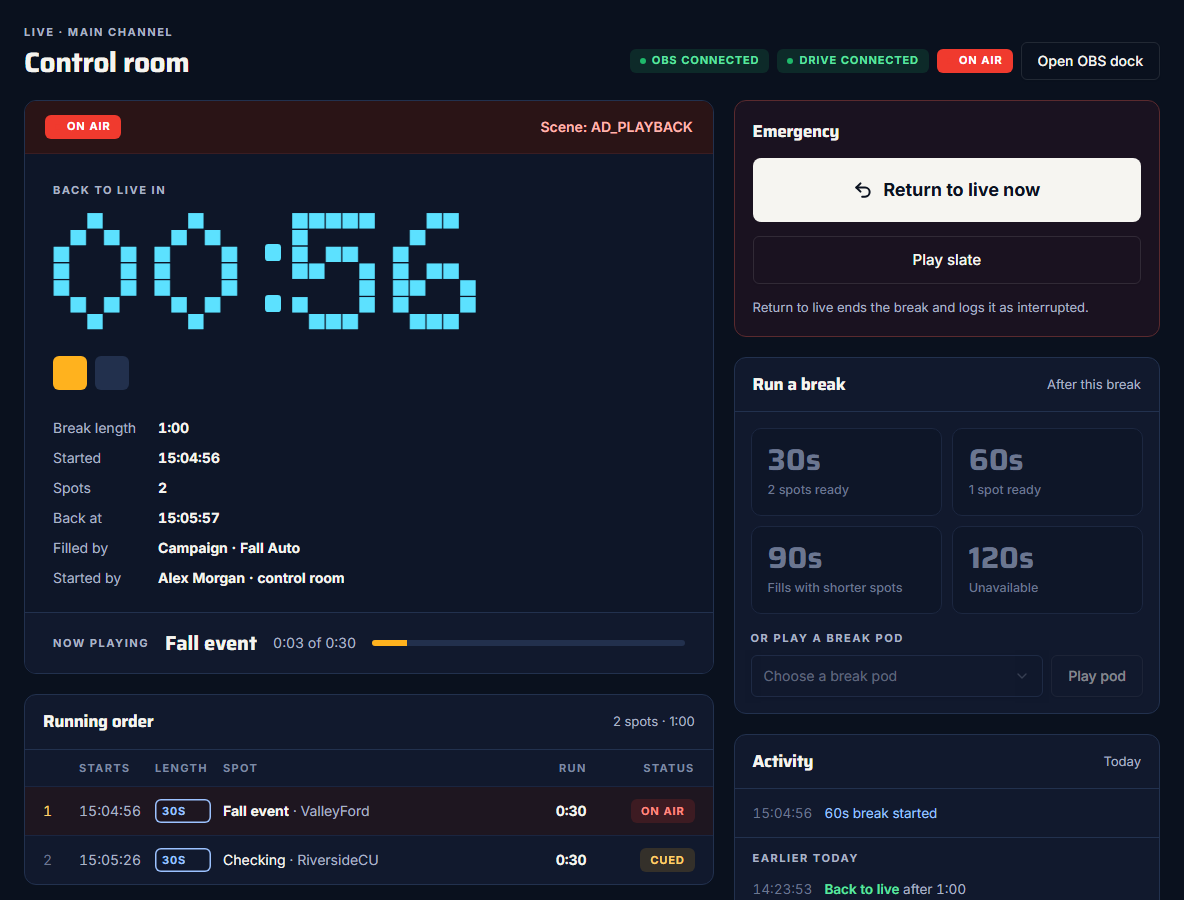
You don't have to do anything during the break. To end it early, press Return to live now: see Return to live early.
If a spot won't start
If the first spot doesn't start playing in OBS within 30 seconds, the break is cancelled and your show stays live. The control room says the spot "didn't start playing within 30 seconds", and proof of play logs the break as Failed. Check the file in the ad library, then try again.
Good habits
- Run a test break before the show, so you know OBS, Drive and your spots all work.
- Keep the control room (or the OBS dock) open from before air time. Don't restart OBS mid-show.
- Only one break at a time: the buttons stay off while your break is running.