Short version
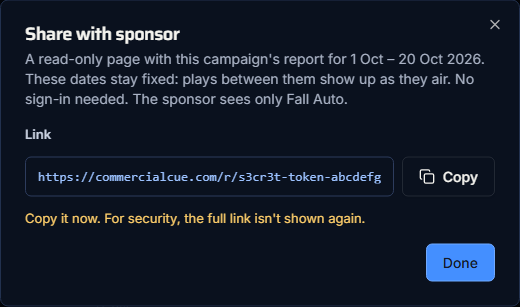
In Campaign reports, choose one campaign and the dates, press Apply, then Share with sponsor. Copy the link straight away: it's only shown once.
Make a link
- Open Campaign reports.
- Choose one campaign (not All campaigns). The dates change to its flight, up to today; change them if you want a different range. Press Apply.
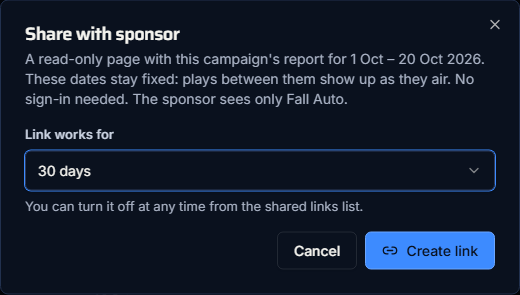
- Press Share with sponsor.
- Under Link works for, choose 7 days, 30 days (the default), 90 days or Until I turn it off.
- Press Create link.
- Press Copy and send the link to your sponsor.
The link is shown once
"Copy it now. For security, the full link isn't shown again." If you lose it, turn it off and make a new one.
The dates are fixed
The link covers the dates you applied when you made it, and the dialog says so: "These dates stay fixed." Plays between those dates show up on the sponsor's page as they air, but the dates don't move forward on their own.
Choosing a campaign fills in its flight up to today. To share a flight that's still running, set To to the campaign's end date before you press Share with sponsor, so the rest of the flight shows up as it airs.
The sponsor's page counts days in your time zone, so they see the same numbers you do.
What the sponsor sees
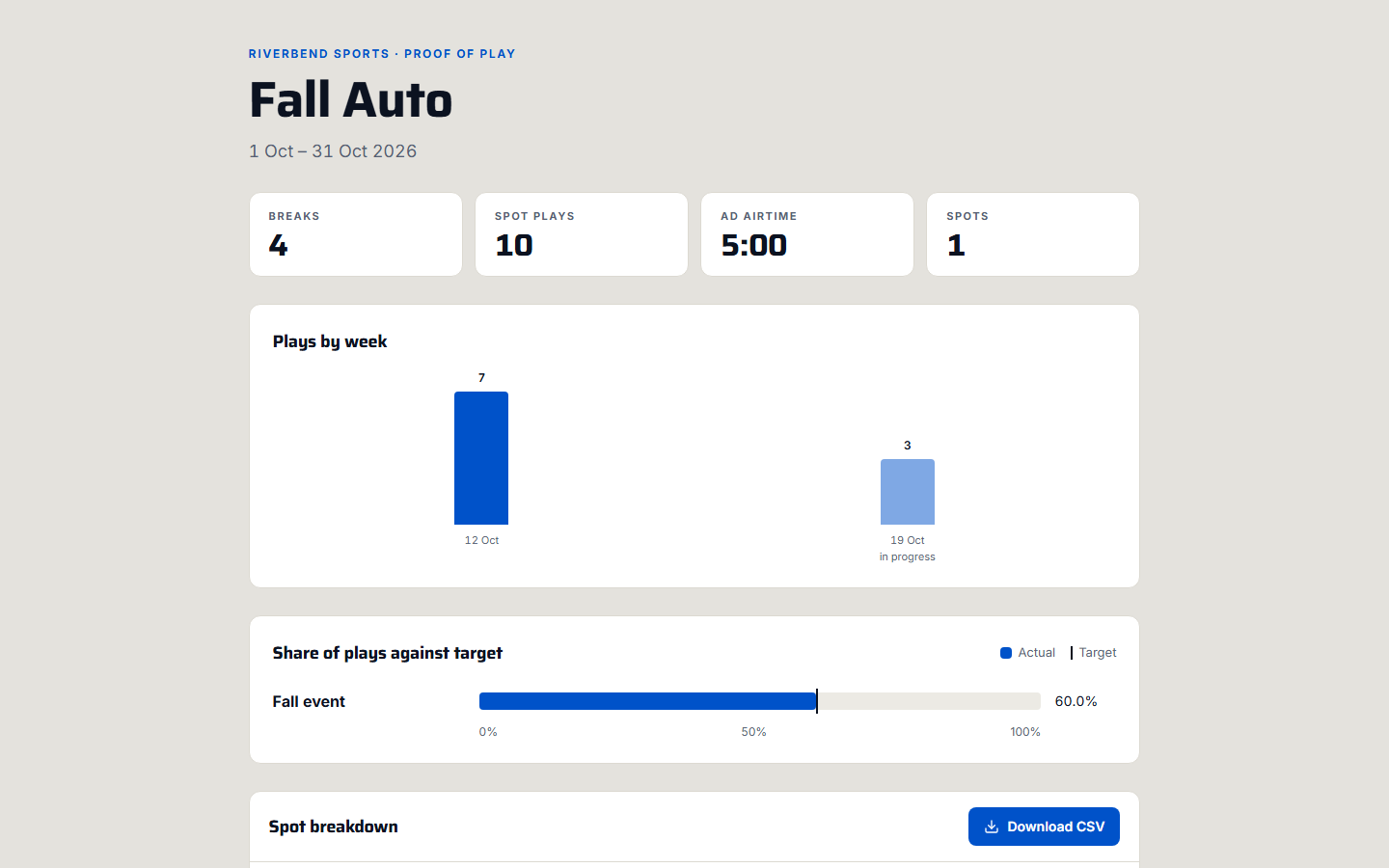
The sponsor opens the link in any browser. They don't need an account or to sign in. They see:
- your workspace's name, the campaign's name and the dates
- Breaks, Spot plays, Ad airtime and Spots
- Plays by week, Share of plays and the Spot breakdown
- Download CSV
They see only that campaign. Search engines don't index these pages.
Track and turn off links
Shared links, at the bottom of Campaign reports, lists every link you've made:

- Campaign, Dates, Link (the start of it only), Expires
- Views: each time the page is opened, with the last date. CSV downloads don't count.
- Status: Active, Expired or Turned off
Press Turn off to stop a link working at once. An expired or turned-off link shows "This report link isn't available".
Deleting a campaign also deletes its links.