Short version
The dock has the countdown, Return to live, Play slate, the break buttons and the pod picker. Use the control room alongside it when you want the running order and activity.
To add the dock to OBS, see Add the Commercial Cue dock to OBS.
The dock, top to bottom
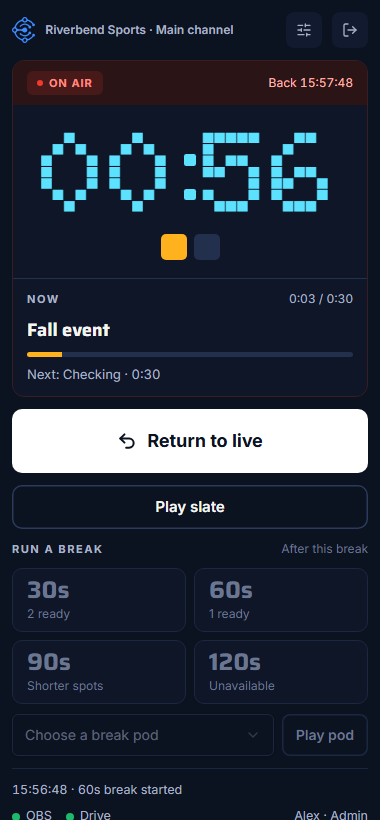
- Header: your workspace, the OBS setup button (back to the setup wizard) and Sign out.
- State badge: Ready, On air, Slate on air, Returning, Warning or Error, with "Back {time}" during a break.
- Countdown and a square for each spot.
- Now / Next: the spot on air, how far through it is, and what's next.
- Return to live and Play slate.
- Run a break: the four lengths, with short labels: "N ready", "Shorter spots" or "Unavailable".
- Break pod picker and Play pod.
- Footer: the last thing you did, OBS and Drive status, and who's signed in.
The buttons work the same as in the control room. See Run your first break, Return to live early and Play the slate in an emergency.
If the page that started a break was closed (for example you reloaded the dock mid-break), the dock says "No page is running this break." with Take over this break. See What happens during a break.
What the dock doesn't show
The dock is small, so some things are only in the control room:
- the running order table
- Filled by and Started by
- the activity history
- breaks started by other people
The dock and the control room together
A break you start in the dock also shows in your own control room, with the running order and Filled by. Many operators keep the control room open on a second screen and press the buttons in the dock.